Taking your first flight for BAVirtual
v1.0 19th May 2026
Congrats! You've joined BAVirtual. Time to log your first PIREP! This guide is simply a quick introduction, to get you in the air - and back on the ground - with our software.
Prerequisites
Before beginning your flight logging journey with BAVirtual, you will need 3 essential software programs.
- Either Microsoft Flight Simulator, or Microsoft Flight Simulator 2024
- Merlin ACARS (BAVirtual ACARS System)
- FSUIPC7 for MSFS2020 and MSFS2024
Although not a requirement, you may also may wish to fly on the VATSIM network. All relevant information, including an approved pilot client download, can be found in the VATSIM Getting Started Guide
Booking a Flight on BAVMS
Before flying, you will need to book a flight through BAVMS
BAVMS is the heart of BAVirtual. Here you can book flights, check out our live ACARS, view our pilot roster and view your BAVirtual Pilot Profile.
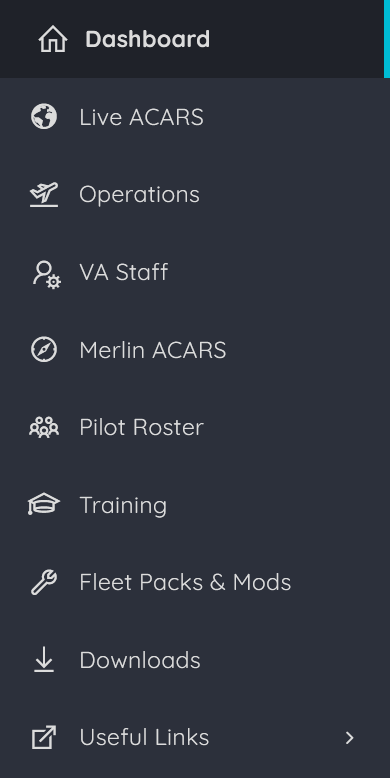
To book a flight you will need to click Operations in the sidebar on the left.
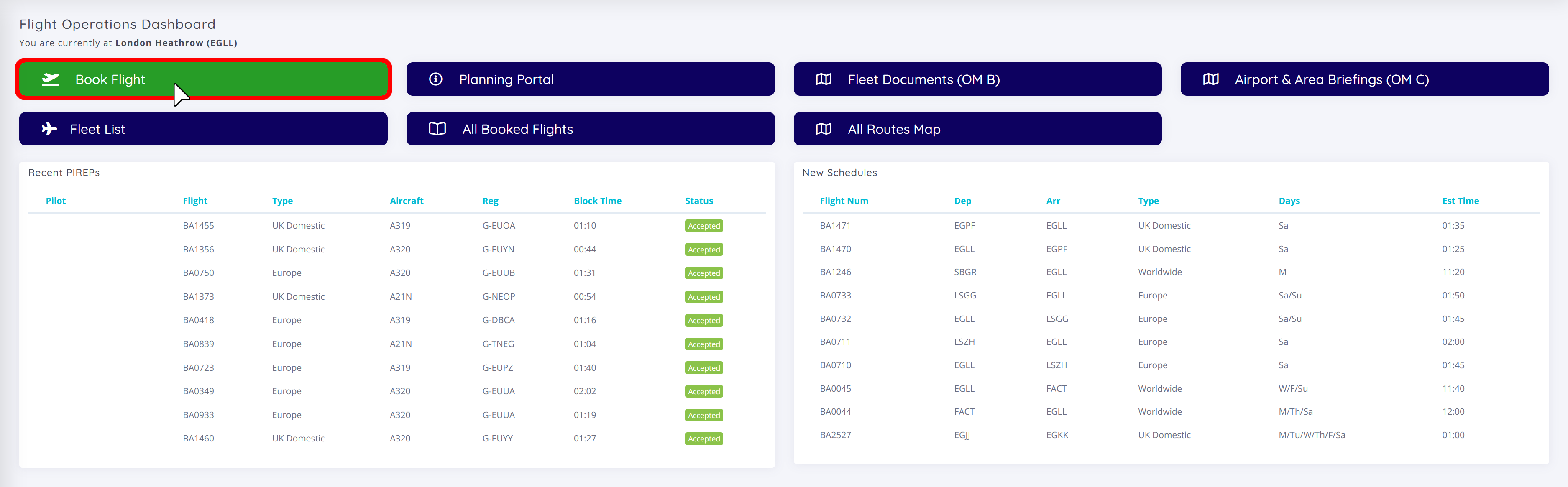
Flight Operations Dashboard
Welcome to the Flight Operations Dashbaord, here you can book and plan flights as well as insights into the BAVirtual flight operations. We'll focus on booking a flight in this guide, to start click on the green 'Book Flight' button.
Once you have clicked on the 'Book Flight' button you will be presented with the Schedules page. Here, you can search through our range of real-world schedules. Take a moment to have a look through our schedules and pick where you want to fly.
On the right side of the screen, I have gone through a selection of filters to find the perfect flight for me. I have chosen that I want to fly from EGLL to EGPH, in an A320 and I want to include substitutions allowed on this flight. I've also ordered the flights by Earliest Departure.
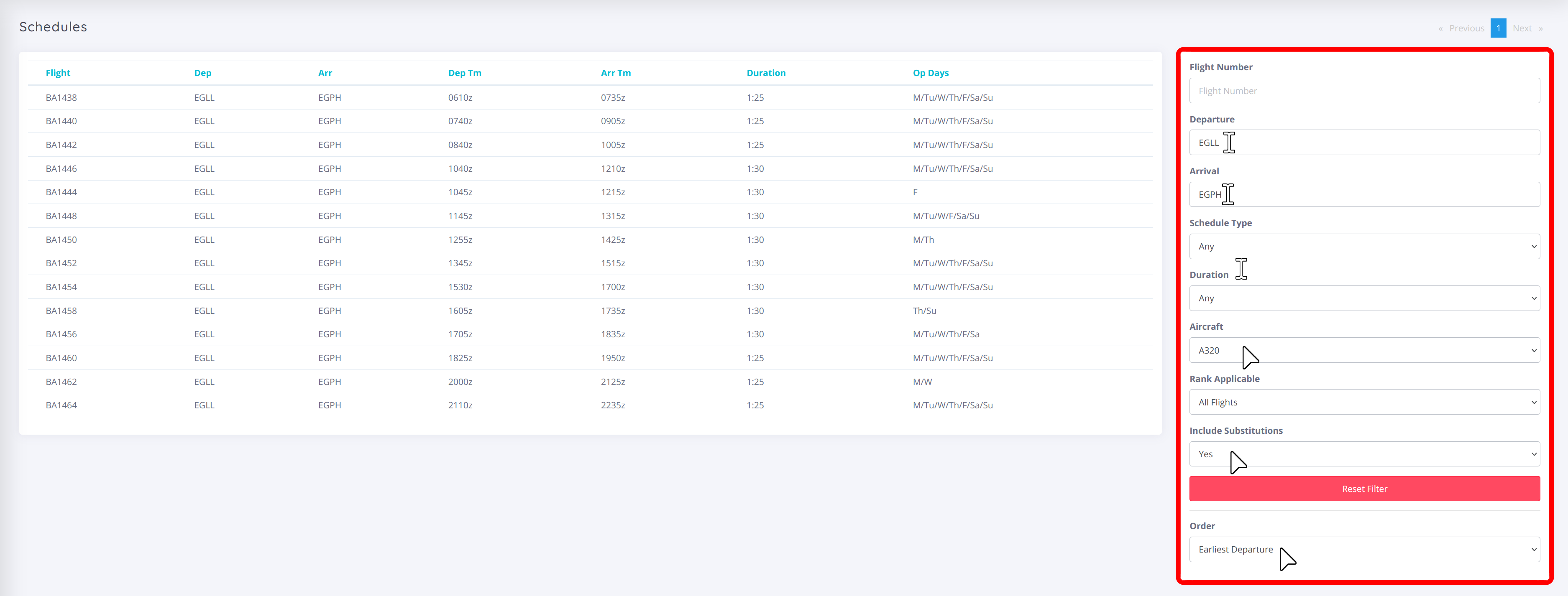
Members do not need to fly the real dates or times listed in the Schedules page
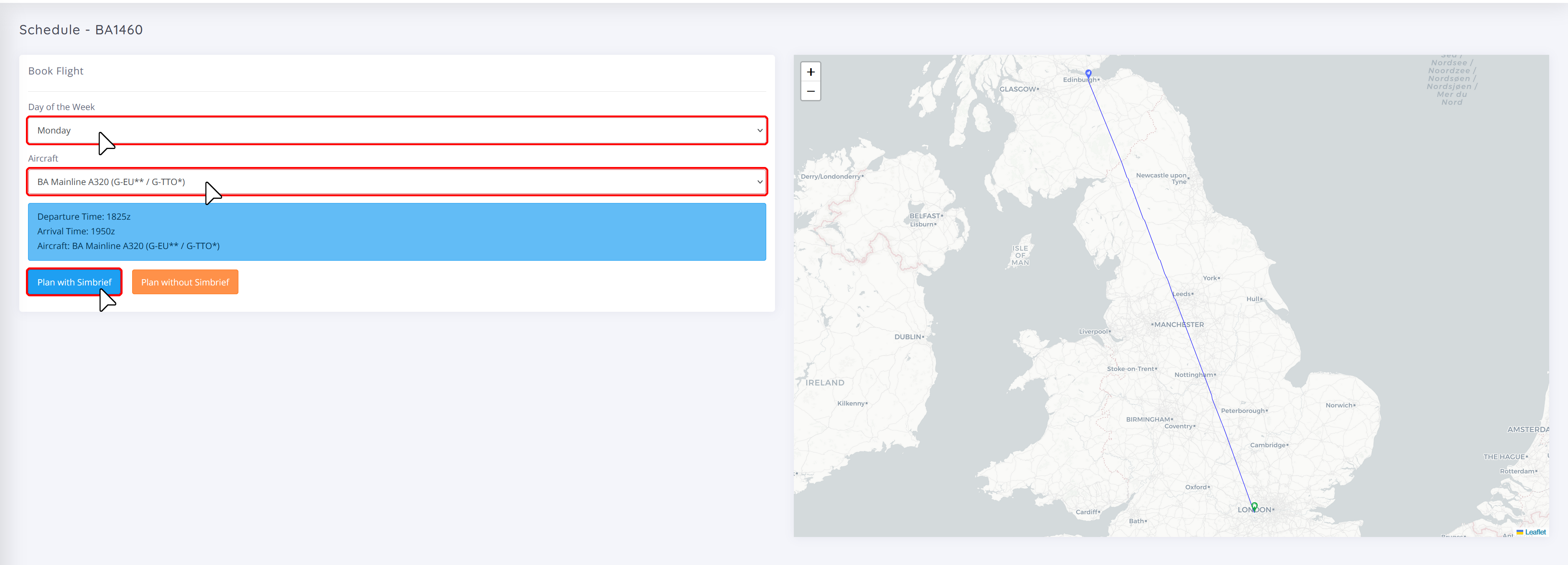
Now that you have selected a flight, and pressed the blue 'Book' button it will take you to the page below.
Here, we can select the day of the week, aircraft type and if we want to plan with, or without our in-built SimBrief Integration that we offer. I have opted into planning with SimBrief
BAV members can either use SimBrief or without SimBrief when booking a flight. Members who opt into booking without SimBrief should input their planned ZFW and passenger count to confirm the booking.
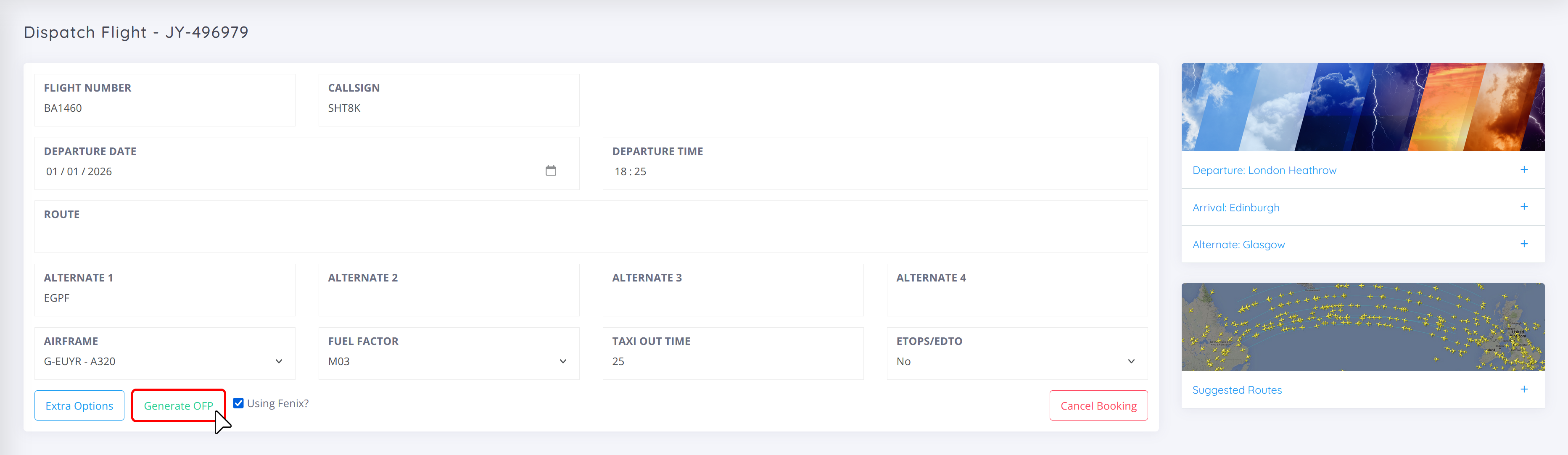
Here on the Dispatch Flight page, we can edit a range of things, this includes the Callsign (but not the flight number), Departure Date and Time, Route, and timing. If the 'Route' is blank be default, leaving it blank will allow SimBrief to automatically choose a route for you.
Once you have had a look through all the fields that you can populate, we can hit 'Generate OFP'.
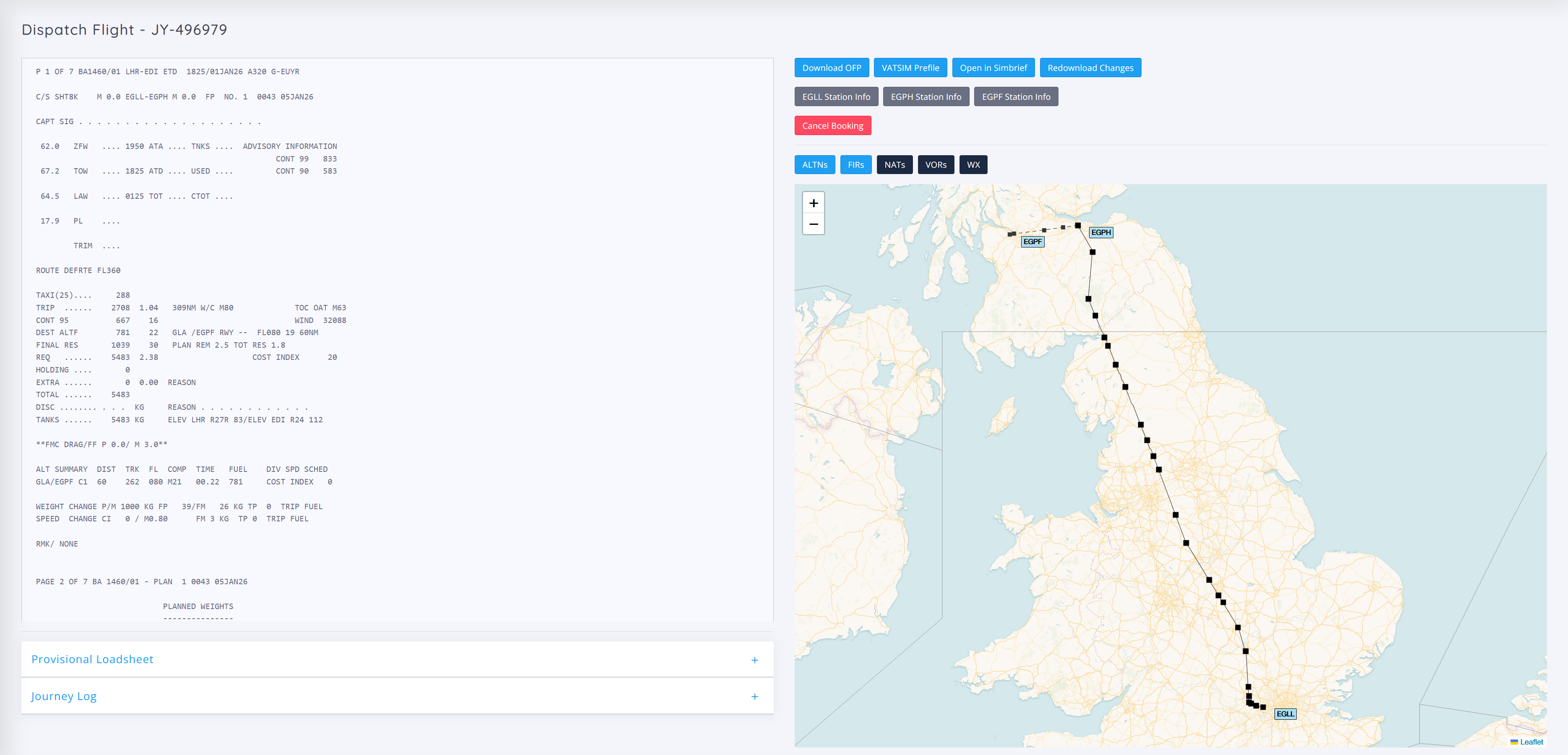
Once the OFP has finished generating, you will be taken to the page below. On the left hand side you will see your OFP, Provisional Loadsheet and Journey Log. On the right hand side, you will see multiple buttons.
-
Download OFP - Open the OFP in a .pdf file
-
VATSIM Prefile - A direct link to my.vatsim to prefile the flight on VATSIM
-
Open in SimBrief - Want to change anything? Takes you to the SimBrief 'Edit Flight' page
-
Redownload Changes - After changing anything in SimBrief, this syncs your changes from SimBrief into BAVMS
-
ICAO Station Info - Takes you to the BAVMS Planning Portal for the specified aerodrome
-
Cancel Booking - Cancels the BAV flight booking
You will also notice that there is a map to view your route. Above the map is several buttons to toggle layers on the map.
This is the planning stage of the flight complete! Now, you can load up your simulator of choice, BAVirtul Merlin and check that FSUIPC is started and working.
Merlin
The Merlin manual, which will answer 99% of your questions, can be found here - https://docs.bavirtual.co.uk/docs/merlin-manual/guide/
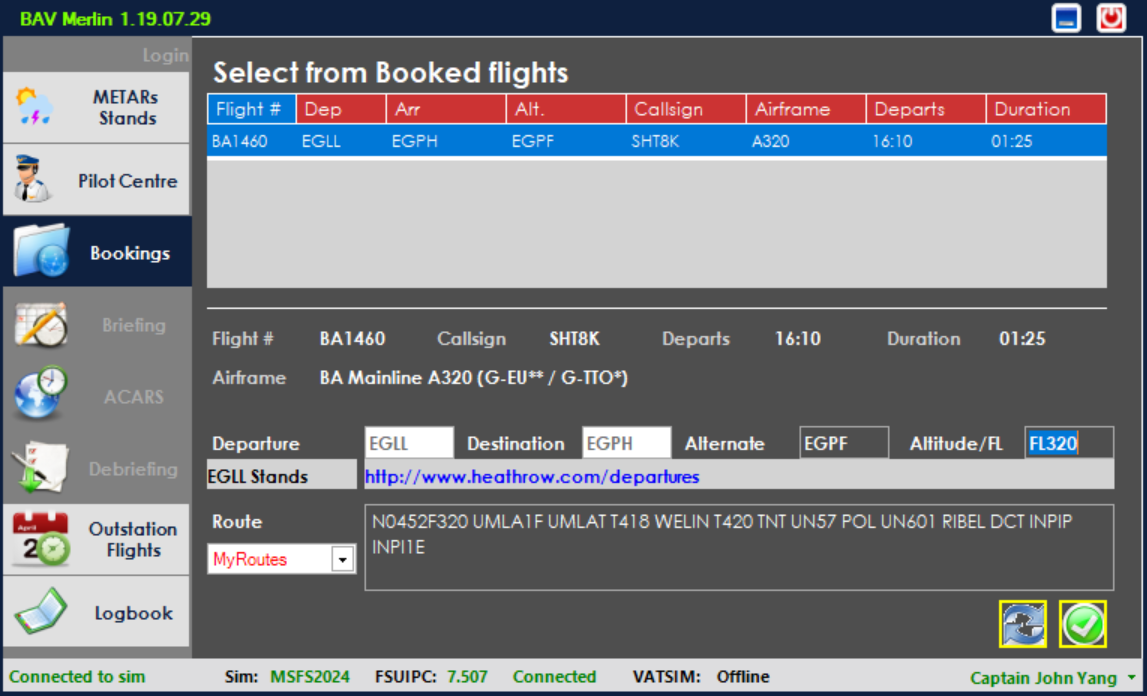
After booking your flight, and loading into Merlin you will find yourself in the Bookings page with your booked flight. To start your flight; you should choose your flight and type in your final Altitude/FL then click on another box. You will now see the green 'Confirm Flight' button which will lead you to the Briefing page.
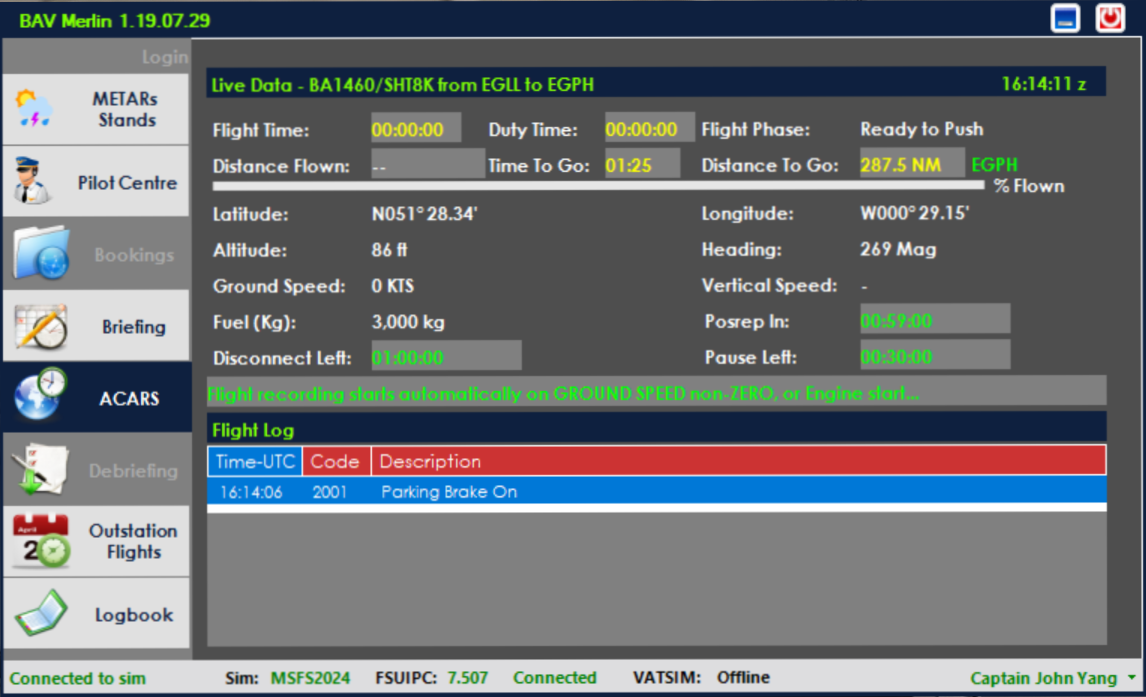
Once you are in the ACARS page, you are good to go!
After engine shut down, your PIREP will automatically be filed and you can view it in your BAVMS Pilot Profile once accepted. You can also view your PIREP history in the 'logbook' tab in Merlin.